
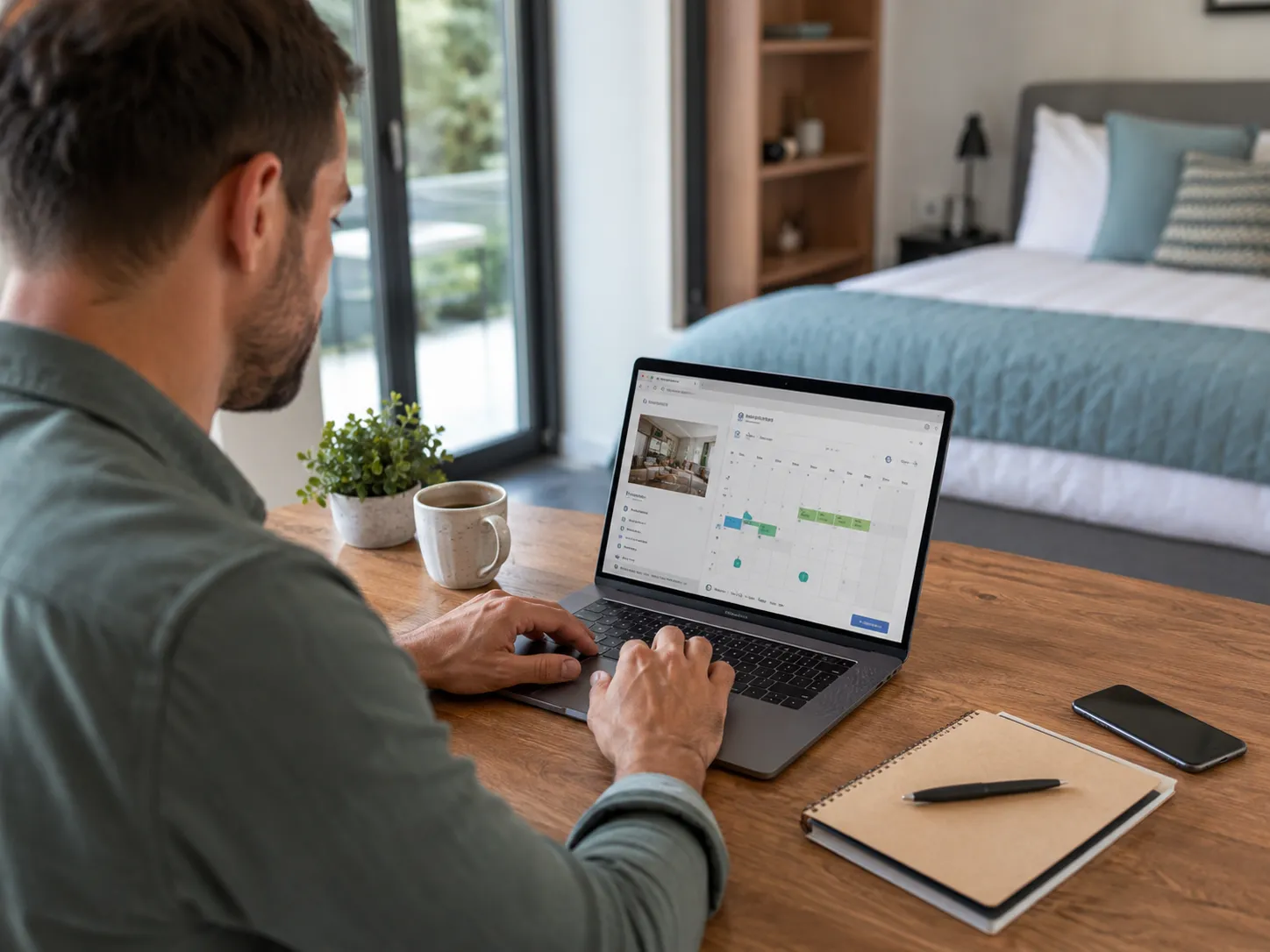
Starting accommodation sales on Booking.com is an important step towards attracting a steady flow of guests. Registration itself, however, is only the beginning of building a profitable business. Without proper preparation and automation, handling a growing number of reservations can quickly turn into operational chaos. This guide explains how to configure a Booking.com partner account efficiently and maintain control over your calendar and prices from the first day.
What information should you prepare before adding a property to Booking.com?
Before opening the registration form, gather all important information about the property in one place. This will save time and prevent you from searching for documents while completing each stage of the setup. The platform requires accurate information that influences how both the algorithm and potential guests initially evaluate your offer.
Prepare the following:
- company registration details, business address and legal form, or personal details if you rent privately;
- the bank account number used for Booking.com settlements;
- the property address and its precise position on the map;
- a list of rooms or apartments, including floor area and maximum occupancy;
- starting prices for each room type;
- the cancellation policies you intend to offer guests;
- high-quality property photographs, ideally several for each room type;
- a list of amenities such as parking, Wi-Fi, air conditioning, kitchen facilities and pet access.
The more information you prepare in advance, the faster the registration process will be.
How to register a property on Booking.com step by step
Adding a property to Booking.com is not particularly complicated. The platform provides guidance at every stage. The process is intuitive, although completing it carefully takes time.
- Create an account
Go to partner.booking.com, sign in or create a new account and start building your listing. - Select the property type
Choose the correct accommodation category, such as apartment, holiday home, guesthouse or hotel. - Configure the property structure and name
Specify the number of rooms or units and give the property a distinctive commercial name. Avoid generic descriptions. Instead of “City Centre Apartment”, use a recognisable brand name that guests can identify online. - Add the location
Enter the exact address, select the correct district and place the property marker accurately on the map. - Connect a Channel Manager
If you use an external apartment reservation system such as IdoBooking, you can connect it to the listing at this stage. - Select equipment and amenities
Mark features such as Wi-Fi, parking, air conditioning, pet-friendly accommodation and kitchen equipment. - Upload photographs
Add high-resolution images showing every room, the bathroom, key facilities and the exterior of the building. - Define property rules
Set check-in and check-out hours, smoking restrictions, rules concerning events and any deposit requirements. - Configure rate plans and payments
Set standard rates, discounts for longer stays and cancellation conditions. Select how guest payments will be collected and whether Booking.com payment services will be used. - Verify identity and property details
Complete the Know Your Partner verification process and confirm the location according to the platform’s instructions. Address verification may involve a letter containing a PIN, a video recording or a video call. - Activate the listing and open the calendar
Check that the available dates are correct and publish the listing. - Wait for final verification
Booking.com reviews the submitted information. In straightforward cases, this may be completed within approximately 24 hours, although the actual time can vary.
Once approved, the property can appear in search results. Its initial visibility may be limited because the algorithm needs time and the first guest reviews before it can assess and promote the listing more broadly.
How should you configure rooms, apartments, prices and stay rules?
Accurate listing configuration is essential. Room and apartment descriptions must reflect the actual layout and standard. If you offer a two-room apartment, clearly explain which beds are in the bedroom and which are in the living room. Missing this detail or exaggerating the standard can quickly result in negative reviews after arrival.
In the pricing section, create a standard rate plan and additional options for longer stays or non-refundable reservations. More restrictive cancellation conditions may be appropriate during peak season, while greater flexibility can encourage bookings during lower-demand months.
It is also important to define the minimum stay. If you rent an entire holiday home, setting a two- or three-night minimum during the summer may protect you from unprofitable one-night reservations that generate high cleaning and operational costs.
Photos, description and amenities: what affects listing performance?
The visual presentation of the listing has a direct impact on conversion. Travellers usually scan available options quickly and do not analyse every offer in detail. The first five photos should therefore present the property’s strongest features. Use professional images taken in bright, natural light. Show the room layout, views, kitchen equipment and relevant bathroom details. Dark, unclear or accidental smartphone images can substantially reduce the chance of receiving a reservation.
Booking.com may generate parts of the property description using the amenities selected in the panel, helping maintain consistency and provide translations into multiple languages. Your responsibility is to mark every available feature accurately. If parking, air conditioning, a dishwasher or fast Wi-Fi is not selected, the listing may disappear from results when a traveller uses the corresponding filter.
Managing the availability calendar after listing a property on Booking.com
Once the listing is published, everyday availability management begins. Guests browsing the platform can usually make an instant reservation without waiting for manual confirmation. You therefore need complete confidence that all dates displayed in the calendar are correct.
If Booking.com is your only sales channel, manual calendar control is possible, although it still requires regular attention. The situation becomes more complicated when rooms are also offered through other portals or telephone bookings are accepted. Even a short delay in manually blocking occupied dates can then have serious business consequences.
For this reason, many owners implement a reservation management system integrated with sales portals from the beginning. Changes are processed automatically and the calendar remains up to date.
Why should you connect Booking.com to your reservation system immediately?
Launching sales without automated support creates a direct risk of overbooking, where two reservations cover the same dates. This is one of the most serious reputational and financial problems in hospitality. When a double booking occurs, the property may need to arrange alternative accommodation of a similar or higher standard and cover the price difference, potentially exceeding the revenue from the original stay.
A modern online reservation system removes much of this pressure by completing repetitive work automatically. Instead of spending hours checking inboxes, replying to messages and correcting calendars, you gain a structured automated process. The time saved can be invested in direct guest service and improving the accommodation standard.
Would you like to prevent double bookings and automate operations from the first day? Explore IdoBooking Channel Manager and the online reservation system to maintain control over your property.
Booking.com integration with IdoBooking and reservation management from one panel
Centralising all sales channels is the key to efficient rental management. With Channel Manager, your Booking.com partner account is connected directly to IdoBooking. From that moment, room availability and rates are exchanged in real time. When a guest reserves an apartment on Booking.com, the system immediately blocks the same dates in every other connected channel.
The advanced Multi-Calendar becomes the central view of your properties. From one clear screen, you can monitor payment statuses, organise cleaning work and adjust prices. IdoBooking also provides a dedicated Booking Engine that can be added to your own website. This encourages direct reservations, helps avoid intermediary commission and allows the property to retain a larger share of the booking value.
Do not spend time synchronising calendars manually. Explore the professional Booking.com integration in IdoBooking and manage prices and availability from one intuitive panel.
The most common mistakes when adding a property to Booking.com
New hosts often make mistakes that limit a property’s sales potential from the beginning. The most common problems include:
- Incomplete profile information: missing amenities or an inaccurate description can reduce visibility in search results.
- Poor photographs: dark, unclear or random images discourage guests before they read the listing.
- An overly restrictive cancellation policy at launch: this may limit reservations before the property has collected its first reviews.
- An outdated calendar: this causes overbooking when the property sells through several channels.
- Large price differences between channels: inconsistent rates can reduce guest trust.
- Postponing Channel Manager integration: the longer bookings are managed manually, the greater the risk of errors as reservation volume increases.
Manual copying of data between portals is one of the most common causes of overlapping reservations. Protect your business by enabling automatic data exchange from the beginning.
Connect Booking.com with IdoBooking
Adding a property to Booking.com opens access to a global audience and is a natural first step for many hosts. However, reliable technology working behind the scenes is what creates operational stability and makes sustainable growth possible. By connecting the portal to the professional IdoBooking management system, you build a modern process that supports sales while reducing repetitive manual work.
What does connecting Booking.com with IdoBooking look like in practice?
IdoBooking expert comment
Connecting Booking.com with IdoBooking takes just a moment.
Do you already have a property listed on Booking.com? We will transfer it to IdoBooking for you. All you need to do is select us as your connectivity partner in the Booking.com Extranet. Our consultant will map your rooms, rates and rate plans, so you do not have to recreate your offer from scratch.
Do you not have a Booking.com account yet? We can take care of that as well. You can set up a business account through us, and we will help you complete the required formalities and start working with Booking.com. Once your account is active, you can export the offer prepared in IdoBooking to Booking.com in just a few clicks.
From that point on, rates, availability and reservations are synchronized automatically in both directions. There are no more double bookings or manual calendar updates. You manage everything from one place, while Booking.com simply works to increase your revenue.
Agnieszka Baranowska Customer Care & Clients Onboarding
FAQ
How do you add a property to Booking.com?
Create a partner account, select the property type and complete all required information. During registration, provide the address, description, photographs, room or apartment details, prices, property rules and availability calendar. Once configuration and verification are complete, the listing can be published. Connecting it to a reservation system and Channel Manager at this stage allows dates, prices and availability to be synchronised automatically.
How long does Booking.com property verification take?
The verification time depends on the property type and the method used to confirm the information. It may take from several hours to several working days. Additional document requests or another verification step can extend the process. You can monitor the current status in the partner panel.
Why can’t I see my property on Booking.com?
The property may still be under verification or may not have been published. Other possible causes include incomplete information, a closed availability calendar, no open dates or search filters that exclude the offer. Check that sales dates are open, prices are configured correctly and the listing is complete. If the settings are correct and the property still does not appear, contact Booking.com partner support.